Feeling overwhelmed by the everyday demands of running a Shopify store? From managing orders and inventory to monitoring performance and marketing, many Shopify merchants are drowning in admin.
That’s where Shopify Flow comes in.
Shopify Flow is a powerful workflow automation tool that takes care of repetitive, time-consuming tasks behind the scenes, freeing up more of your time to focus on improving performance and scaling your business.
Adopting smart automation tools like Shopify Flow and Shopify Sidekick AI is no longer optional – it’s essential for stores that want to be more productive and stay competitive.
In this article, we explain what exactly Shopify Flow is, what it can be used for, and how to set up your first workflows with ease.
What is Shopify Flow?
Shopify Flow is a free app, available in the Shopify app store for stores on the Basic, Grow, Advanced, and Plus plans. It is used to create and run automated workflows from within your Shopify admin.
Merchants can use Flow to build custom workflows that automate and streamline a wide variety of day-to-day eCommerce operations. It’s the ultimate tool for streamlining operations and freeing up more of your time for higher-level strategic tasks.
Its user-friendly drag-and-drop interface is super simple to use, allowing you to drag and drop blocks to tell Shopify what actions to take when certain events happen.
Each flow consists of three blocks:
- Trigger: This is the event that triggers the workflow, i.e., a customer places an order, or an inventory quantity changes.
- Condition: This is the logic behind the flow, the rule that determines whether the workflow should continue, i.e., “Is the order over £500?” or “Is the customer’s shipping address outside of the UK?”
- Actions: These are the tasks that are then carried out automatically, i.e., the customer is tagged as a VIP, or a thank you email is sent to the customer.
Shopify Flow doesn’t just work with Shopify; it can also connect other apps from your tech stack with your workflows, including Klaviyo, Google Sheets, Trello, and Slack. By linking these tools, you can automate processes across your entire business, not just your eCommerce store.
With the right workflows in place, your Shopify store becomes an intelligent, reactive machine, getting the job done behind the scenes with minimal input from you.
3 essential workflows to build in Shopify Flow
To help you get started, here are three really useful workflows to give you a taste of what you can achieve with Shopify Flow.
Once these workflows are up and running, Flow will act as your always-on assistant, automatically responding to triggers and taking action, day or night.
Pause ads for out-of-stock items
Protect your revenue by preventing out-of-stock inventory from generating clicks on Google Ads and wasting PPC budget.
- Trigger: Inventory quantity changes.
- Condition: If the product is now out of stock, it will trigger action.
- Action 1: Hide the out-of-stock product from your online store.
- Action 2: Send a Slack message to your marketing team to turn off ads for the out-of-stock product.
- Action 3: Trigger Shopify Sidekick to draft a purchase order for the supplier.
Catch and flag high-risk orders for review
Catch high-risk orders immediately, preventing them from slipping through the net and reducing the risk of chargebacks.
- Trigger: An order is created.
- Condition: If the order is flagged as “high-risk”, action is triggered.
- Action 1: Shipping fulfilment is put on hold.
- Action 2: The order is tagged to be reviewed.
- Action 3: An email is sent to customer support asking them to manually verify the order.
Create a VIP experience for high-value customers
Reward your most valuable customers with a tailored experience that makes them feel recognised, encourages loyalty, and drives repeat purchases.
- Trigger: An order is created.
- Condition: The customer spends over £1,000.
- Action 1: Tag the customer as a VIP.
- Action 2: Add 500 points to their Loyalty account.
- Action 3: Instruct Sidekick to create a personalised email to send to the customer thanking them for their recent purchase.
A step-by-step guide to building your first workflow using Shopify Flow
Setting up your first workflows in Flow is very straightforward. You can either create a new workflow manually, use a pre-made template, or ask Shopify’s AI assistant Sidekick to help you.
Setting up a workflow manually
- Go to your Shopify Admin, click ‘Apps’ and open Shopify Flow.
- Click ‘Create workflow’.
- Click ‘Select a trigger’ and choose the trigger that will start your workflow.
- Click ‘+’ to create a new step in your workflow. Then click ‘Condition’ and define the condition that must be met before the actions will be taken.
- Click ‘+’ and then select ‘Action’. Select the action you want to be taken when the condition is met. You can add more than one condition or action as needed.
- Click ‘New Workflow’ and name your workflow.
- Finally, click ‘Turn on workflow’ to set it live.
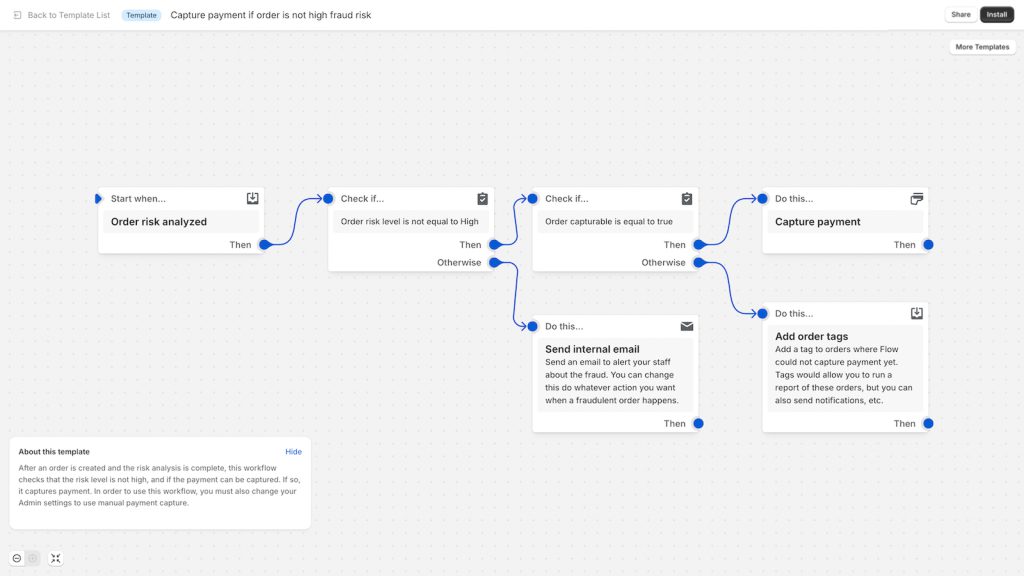
Image Credit: Shopify Flow
Setting up a workflow using a pre-made template
There are hundreds of pre-made workflow templates available in Shopify Flow. To access them, open Shopify Flow, click ‘Create workflow’, and then click ‘Browse templates’. Once you’ve found the template you want, click ‘Install’. After it’s been installed, you’ll have the option to customise it before switching it on.
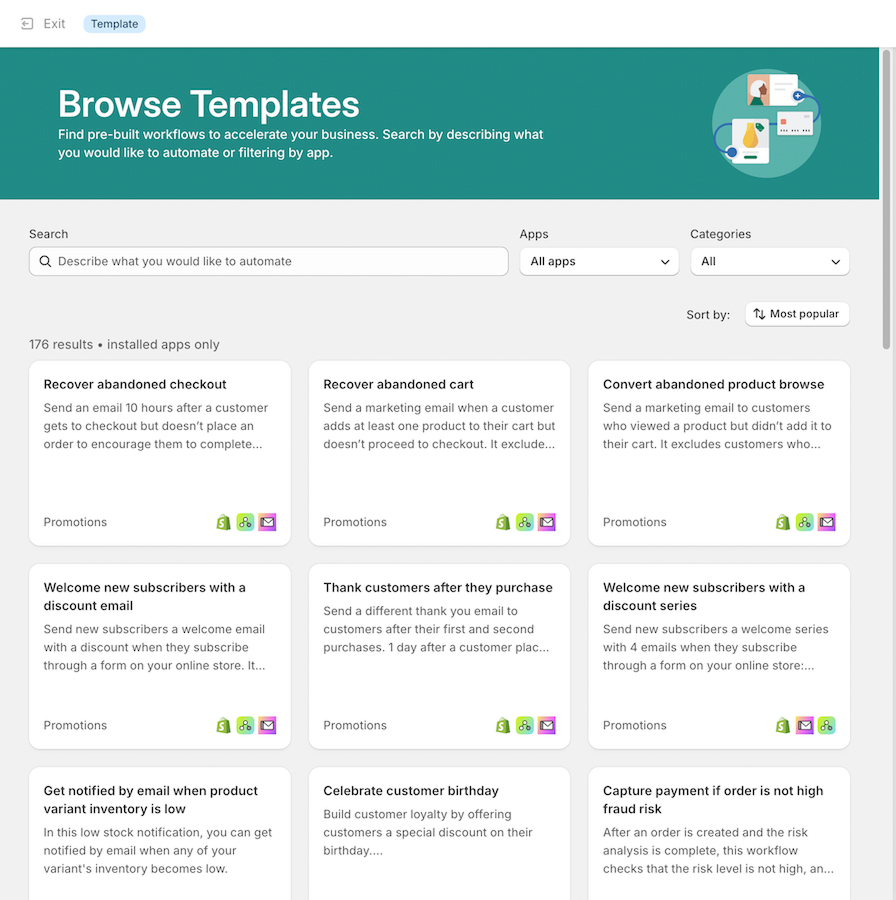
Image Credit: Shopify Flow
Setting up a workflow using Shopify Sidekick
You need to be using a desktop device to set up a workflow using Sidekick. To get started, open Shopify Flow and click the icon for Sidekick. Then, describe to Sidekick in plain language what automation you want to set up. Sidekick will then create a workflow based on your message. You can then review and amend the workflow as needed, either manually or by continuing your conversation with Sidekick. Once you’re happy with the workflow, click ‘Turn on workflow’ to set it live.
Shopify Flow FAQs
Is Shopify Flow only for Shopify Plus merchants?
No. Although Shopify Flow was originally introduced to Shopify Plus merchants only, it is now available on the Basic, Grow, and Advanced plans too. However, some advanced features may be restricted to Plus.
Can I run code in Shopify Flow?
Yes. Developers can use the “run code” action to execute complex logic that isn’t available in the standard drop-downs.
What happens if a workflow fails?
If a workflow fails, Shopify Flow will send you a “workflow error” notification to alert you of the problem.
Is Shopify Flow still worth it for startups and small stores?
Yes. Shopify Flow can help even the smallest startup store save time by automating repetitive tasks like tagging customers, managing inventory alerts, and completing simple marketing actions.
Do I need a developer to add an Agentic Storefront to my Shopify Store?
In most cases, yes. Setting up structured data, enabling real-time inventory, and configuring Shopify’s APIs is usually a job for a developer – contact our team of Shopify experts if you need help.
Partner with Create8 for help automating your eCommerce store
Ready to use automation to build a smarter, more efficient eCommerce business?
At Create8, we’re proud to be a Shopify partner, helping Shopify brands to build automated ecosystems that help them save time, reduce admin, and improve the performance of their Shopify stores.
Whether you’re just getting started with automation or want to refine and scale your existing setup, our team of Shopify web designers and developers are here to help.
To learn more about Shopify Flow or how to use automation tools to streamline your eCommerce operations, contact us by calling 0161 820 9689 or emailing hello@create.co.uk.